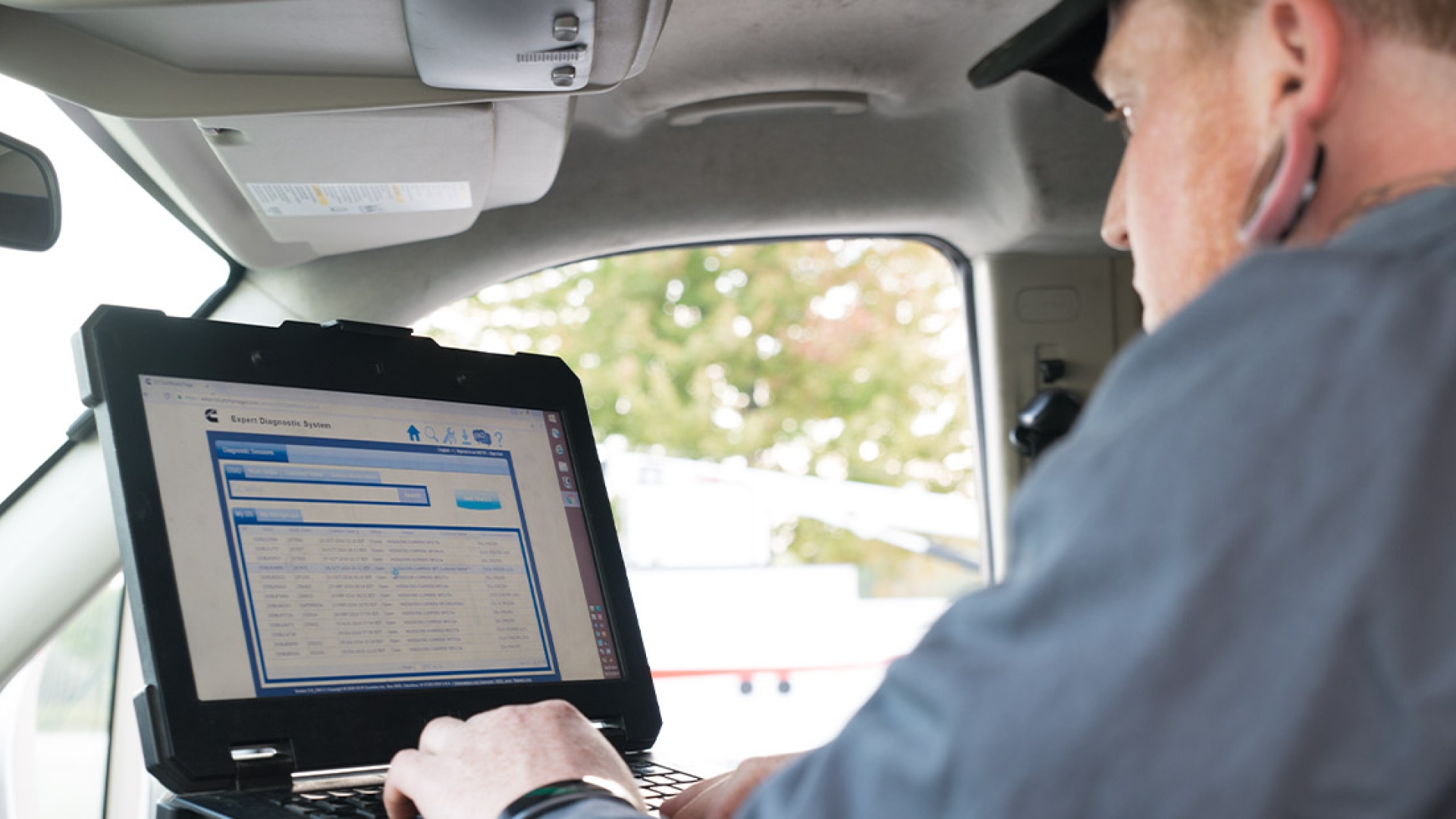
Clear explanations of what we do, how we do it, and what you can realistically expect from each type of session.
Before attempting any repairs or changes, it is worth understanding what is actually happening inside your machine. Our diagnostic process involves reviewing Windows Event Viewer logs for repeated errors, examining which processes are consuming the most CPU and memory, checking hard drive health indicators, reviewing startup programs that load automatically, and looking for software conflicts that may not be immediately obvious.
A diagnostic session typically takes forty-five to sixty minutes. At the end, you receive a clear summary of what we found — including anything that falls outside our remote scope, such as a failing hard drive that may need physical replacement.
Malware comes in many forms: traditional viruses, adware that injects pop-ups into your browser, browser hijackers that change your search engine without permission, potentially unwanted programs (PUPs) bundled with other software, and occasionally more serious threats like ransomware precursors or data-collection tools.
We run scans using multiple complementary tools — because no single scanner catches everything — and then manually review flagged items and suspicious registry entries. We do not simply click "remove all" and hope for the best; we assess each finding before acting to avoid accidentally removing something necessary for your system or software to function.
After removal, we review your browser settings, check installed extensions, and confirm that no obvious re-infection vectors remain. We also discuss how the infection likely happened so you can avoid a repeat.
A computer that was responsive two years ago and is sluggish today has usually accumulated the problem gradually. Software installs additional background services. Updates leave behind older versions. Temporary files build up. Programs add themselves to the startup sequence. None of these individually causes a dramatic slowdown, but together they add up.
Our optimization process involves identifying and disabling startup programs that are not essential, reviewing background services, clearing accumulated temporary and cache files, reviewing visual effects settings for older hardware, and checking for disk fragmentation or other storage-related issues.
We do not use automated "one-click optimization" software, which often causes more problems than it solves. We review each item manually before making changes.
Software problems are often more predictable than they appear. Installation failures typically stem from a handful of common causes: incomplete previous installations, permission issues, missing prerequisites like the Visual C++ redistributable packages, or antivirus software that is incorrectly flagging an installer.
Application crashes can usually be traced through event logs or vendor-specific diagnostic tools. We work through the likely causes in order of probability rather than trying things at random, which saves time and reduces the risk of creating new problems in the process.
We assist with productivity software, PDF tools, accounting applications, and most commonly used desktop programs. We do not handle software that requires physical hardware installation, and we do not provide software that you do not have a valid licence for.
Email problems tend to fall into a few categories: the client will not connect to the server, messages are being blocked as spam, sent mail is not delivering, or the account has recently been migrated and the settings no longer work. Each category has a relatively standard diagnostic process.
We configure IMAP and SMTP settings in Microsoft Outlook, Mozilla Thunderbird, Windows Mail, and Apple Mail. We troubleshoot synchronization issues with Office 365 and Exchange accounts, including password prompt loops and calendar sync failures.
For spam filtering issues, we can review your mail client's junk rules and, if you use your provider's web interface, guide you through adjusting the server-side filters. Note that deliverability issues caused by your domain's reputation or server configuration are generally outside our scope unless you have administrative access to the domain.
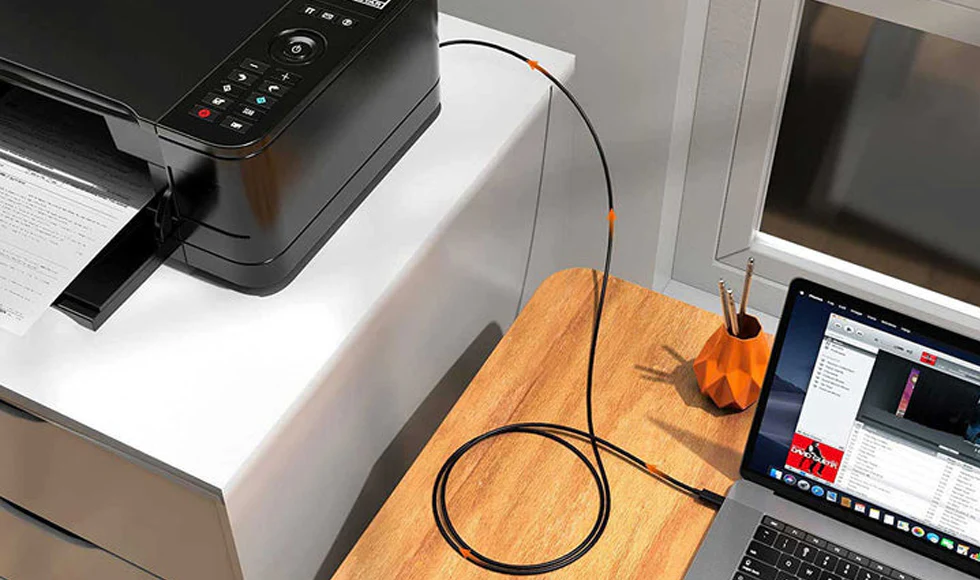
Printer issues are disproportionately frustrating because they often involve a combination of hardware, software, and network factors — any of which can be the root cause. A printer that worked fine last week might stop after a Windows update, an internet provider change, or a driver update from the manufacturer's software.
We handle driver reinstalls, print spooler service resets, wireless printer discovery issues, and the configuration of network printers across multiple computers. We can also assist with PDF printer setup and getting cloud printing working on home networks.
Physical hardware faults — a paper jam sensor, a damaged cartridge, a broken roller — are outside our scope. If your printer is making unusual sounds or physically damaged, a local repair shop or the manufacturer's service centre is the appropriate next step.
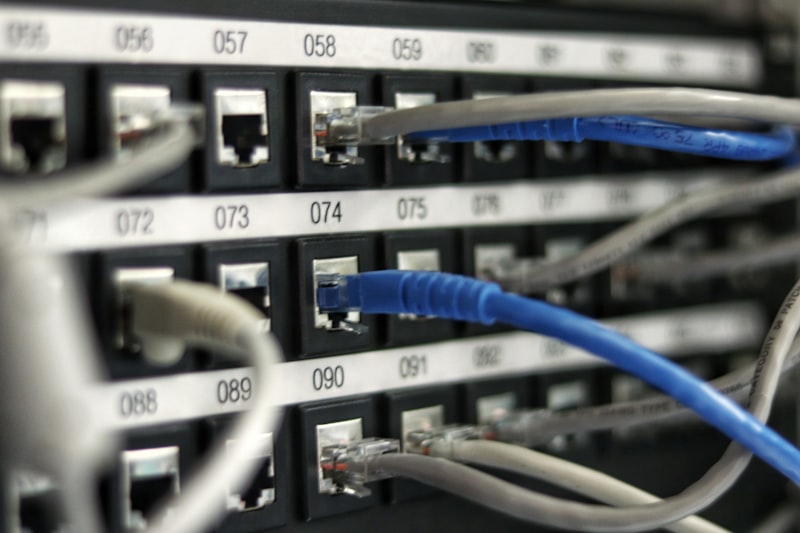
Network problems sit at the intersection of your computer's settings, your router, and your internet service provider — which makes them tricky to diagnose without understanding which layer the issue is at.
We can review your network adapter settings, DNS configuration, IP address assignment, and Windows Firewall rules remotely. We can guide you through router settings that are commonly misconfigured for home networks and help isolate whether an issue is specific to one computer or affecting your entire network.
We do not have access to your internet service provider's infrastructure and cannot resolve outages or hardware faults in your router — those require contact with your ISP or equipment replacement. But we can help you determine whether the problem is on your computer's side before spending time on the phone with your provider.
Describe what is happening and we will help figure out the right approach. There is no obligation involved in reaching out.
Get in Touch